For visualizing your design in real-life placements, creating an LCD touch screen kiosk mockup becomes an excellent tool. Kiosks help in layouts, readability, and branding before a design becomes a touch screen kiosk.
There is a need to have a kiosk frame and photograph to help in touch screen kiosk mockups. Place your kiosk UI/UX screen design in the kiosk. This is achieved through Adobe Photoshop or any design software that aligns with the screen perspective in the kiosk. For a more real-life touch mockup, add some glitches, shadows, reflections, and lighting effects to your mockup.
There is a great use of mockups in the approval of clients and easing the marketing process. They help save a great deal in both time and deployment cost as various adjustments to designs become easy before the kiosk is released to the public. They also help in identifying various usability issues before the design touches the market.

What is a Free LCD Touch Screen Kiosk PSD For?
A Free LCD Touch Screen Kiosk PSD can be best described as a kiosk professional mockup. PSD is short for Photoshop Document, which allows the user to be easily guided to incorporate their design in the kiosk screen in a Photoshop mockup. Different design files for a kiosk have been created and published online with the aim of professional mockup designs becoming easy. Instead of creating a kiosk design from scratch, take a PSD file and fill in your design.
The PSD typically contains smart objects, allowing you to insert designs without the need to worry about perspective and distortion. When the smart object is replaced, the layout will automatically update to fit the design to the kiosk screen.

There is a reason why Free kiosk PSDs have grown in popularity, here are just a few examples:
- UI/UX design Exhibitions
- Exhibiting Portfolios
- Sneak Peeks for Clients
- Marketing
They are especially helpful for novices and those designers who are on a deadline.
Who Needs information touch screen kiosk mockup the Most?
LCD touch screen kiosk mockup PSDis ideal for a variety of professions.
Graphic designers have the opportunity to present their ideas in a much more realistic way. Flat screen designs are no longer the norm, and screen times just feel longer. Showing your work as a kiosk screen just makes a world of difference for your presentation.
Like graphic designers, UI/UX designers build their designs in an interactive real world environment. UI/UX designers need to design and build graphics for how their designs work on freeway relaxation kiosks, mall and airport kiosks.
Kiosk mockups are a great way for marketing people to create visually stunning promotional and advertising materials. Realistic models of aKiosks tailored to the promotional graphics will help engagement, unlike the generic graphics currently being used.
Business owners and startups looking to visualize their product ideas before investing venture to create great ideas as it clearly explains the concept to the developers, investors and/or manufacturers.
The free PSDs are a great way for students and beginning designers to learn about mockup structure. Being a layered and structured design, it’s a great way for students to see how a professional mockup is developed.

How to Use LCD Touch Screen Kiosk Mockup PSD in Photoshop ?
Even the most inexperienced Photoshop users will be able to adapt to the Kiosk PSD file format quickly, especially if they follow the steps below.
Step 1: Download the PSD File and Open in Photoshop
To begin, go to either the URL containing the free LCD kiosk PSD mockup, or you can open the PSD kiosk file using Adobe Photoshop. You will see multiple layers in the layers section.
Step 2: Locate the Smart Object Layer
This is usually the “Replace Screen,” “Your Design Here,” or “Smart Object” layer. Here is where you can place your design.
Step 3: Edit the Smart Object
To edit the smart object layer, double-click on the smart object thumbnail. After you’ve done this, a new window will be presented to you. You will see a screen placeholder.
Step 4: Insert Your Design
The design you are inserting will be a UI design. After you’ve pasted it, you can resize and align it to the window.
Step 5: Save the Smart Object
You will be able to save the document by pressing Ctrl+S (or Cmd+S if you are on a Mac). After this is done, the smart object window can be closed.
Step 6: View the Mockup Update
This is the main PSD file. When your design is saved, it will be displayed on the kiosk screen, and the mockup will appear.
Step 7: Customize Further (Optional)
This can be adjusted to accommodate any of the kiosk design presentation preferences.
Step 8: Export Your Touch Screen Kiosk Mockup
Finally, go over to the file tab and select the exports option to save your mockups as either JPEGs or PNGs.
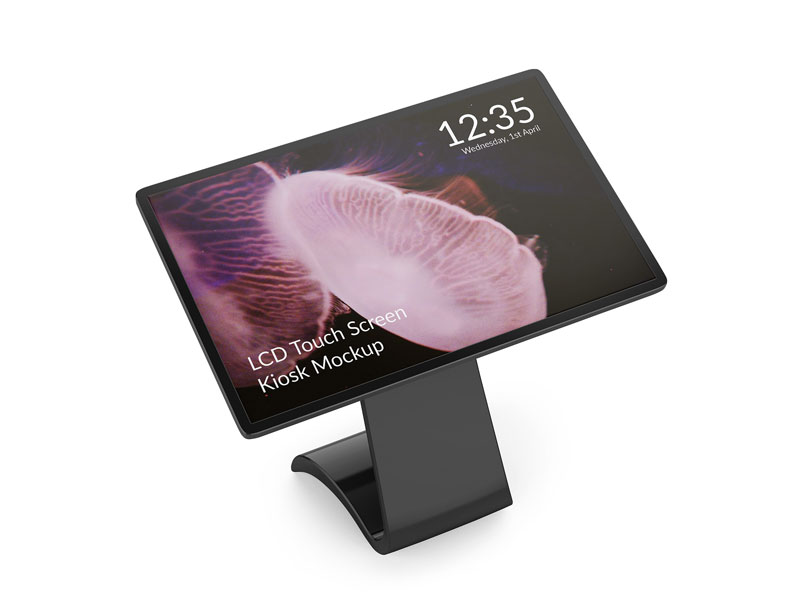
If you’re planning a presentation that requires the incorporation of a kiosk, utilizing the .psd files that have rotary LCD touch screens will be highly beneficial to you. Using .psd files that have LCD rotary touch screens, you can save a lot of time that you would otherwise spend on complicated 3D modeling to deliver a presentation that lets you express your idea through a well mocked up LCD kiosk that takes a flat design and converts it into a breath taking kiosk mockup.